Use TokenRex with Android Studio
Configure TokenRex as a third-party remote model provider for Android Studio Chat and AI Agent.
Google documents third-party endpoint URLs, API keys and model discovery for Chat and AI Agent. These steps have not been tested in a running Android Studio session with TokenRex. Use compatible chat models, not image, video, speech or embedding models. Some specialized Android Studio AI features may not work with third-party models. Screenshots are Google's examples, not proof of a TokenRex connection.
Before you start
- Android Studio with Tools → AI → Model Providers settings
- A private TokenRex API key
- An enabled chat model from Models & Pricing
Setup methods
Connect a third-party remote provider
Native Android Studio setup; no extension is required when your release includes remote model providers.
- 1
Open Android Studio Settings (Preferences on some macOS releases). Expand Tools → AI and select Model Providers. If this menu is missing, update to a release with remote model support using Google's official download page.
- 2
Click Add and choose Third-Party Remote Provider, not Local Provider.
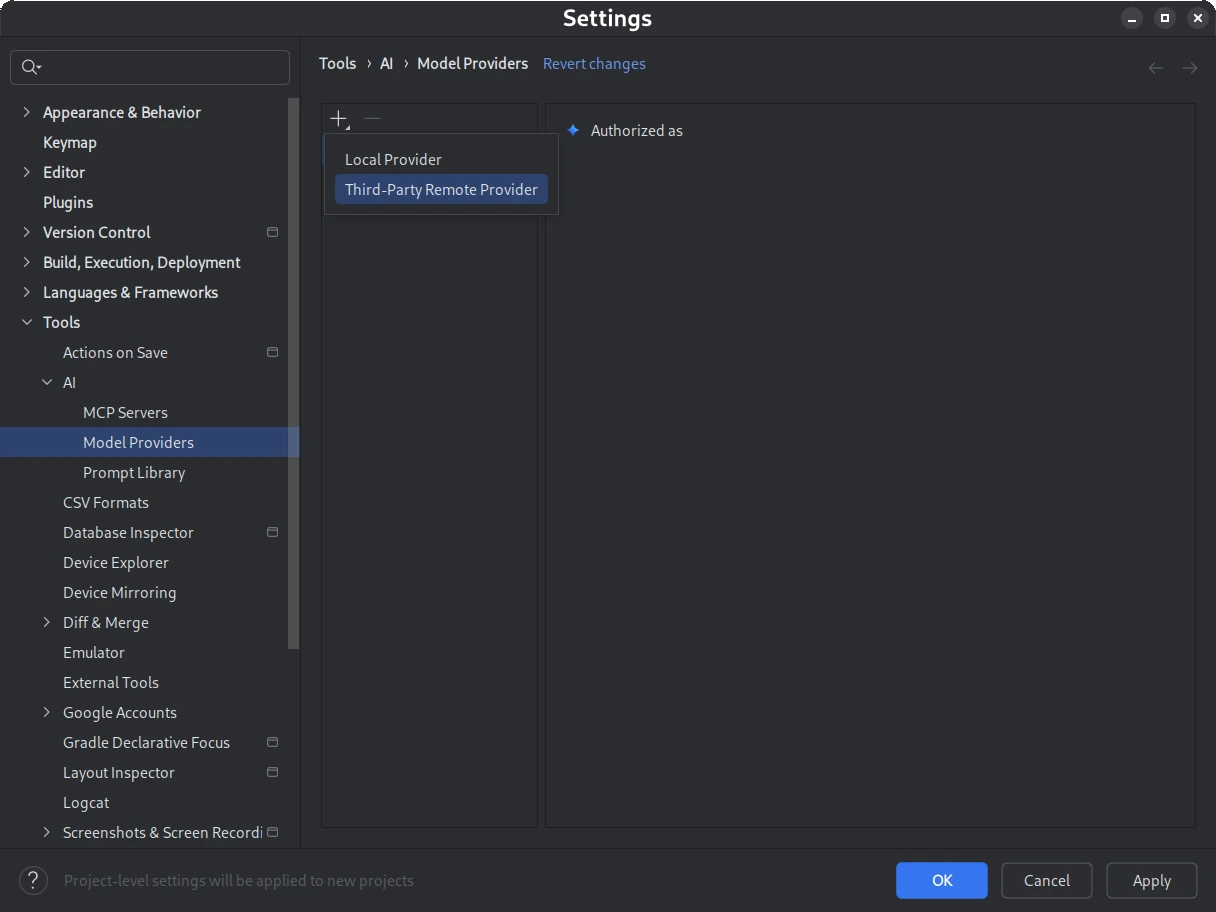
Google's official screenshot: choose Third-Party Remote Provider. Official source - 3
Enter TokenRex in Description. Set URL to https://tokenrex.ai/api/public/v1 and enter your private TokenRex API key in API key. Use the versioned base without /chat/completions; never put the key in project source or shared screenshots.
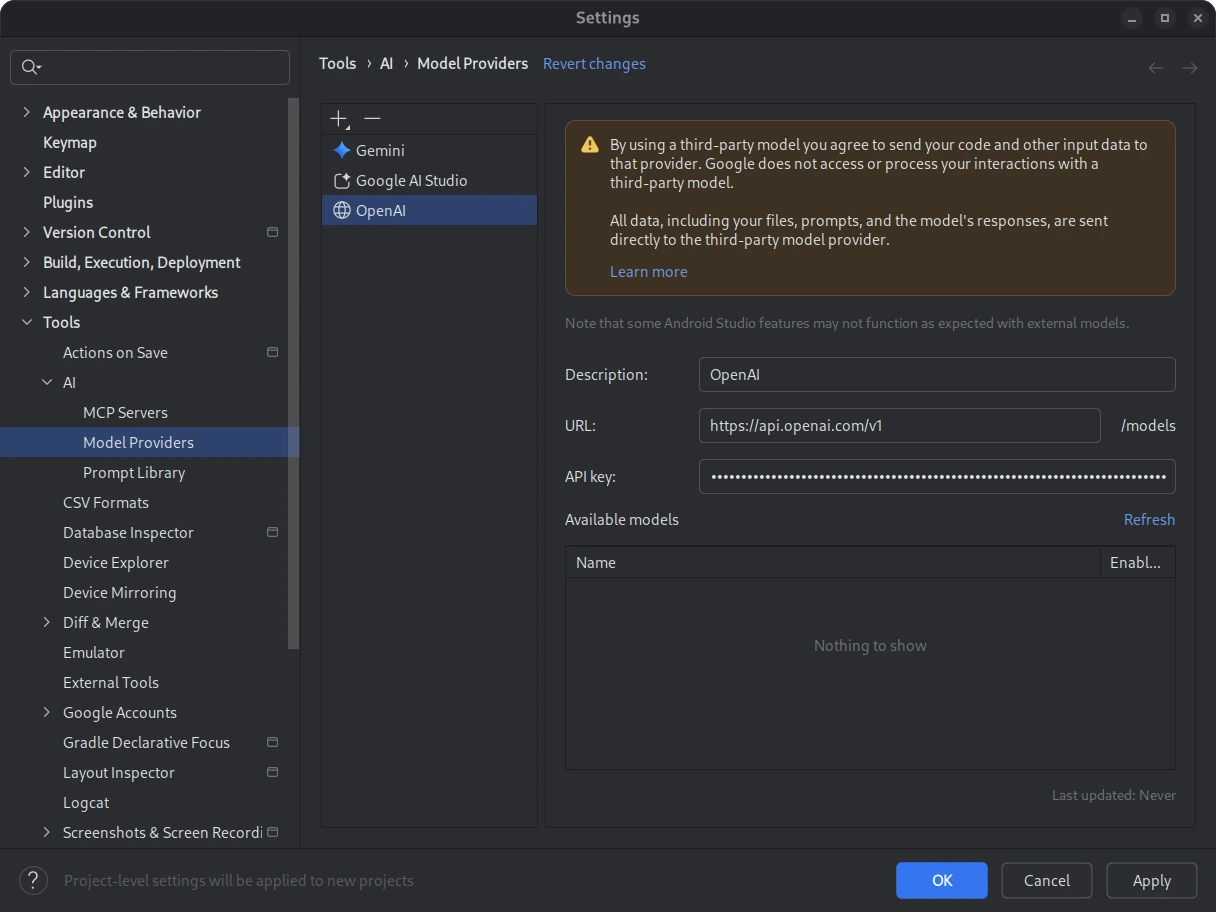
Google's example provider form. Replace its example values with TokenRex and the URL above; enter your key privately. Official source - 4
Click Refresh to retrieve models. Select enabled chat models by their exact IDs from Models & Pricing, then click OK. Do not select image, video, audio or embedding models for the chat interface.
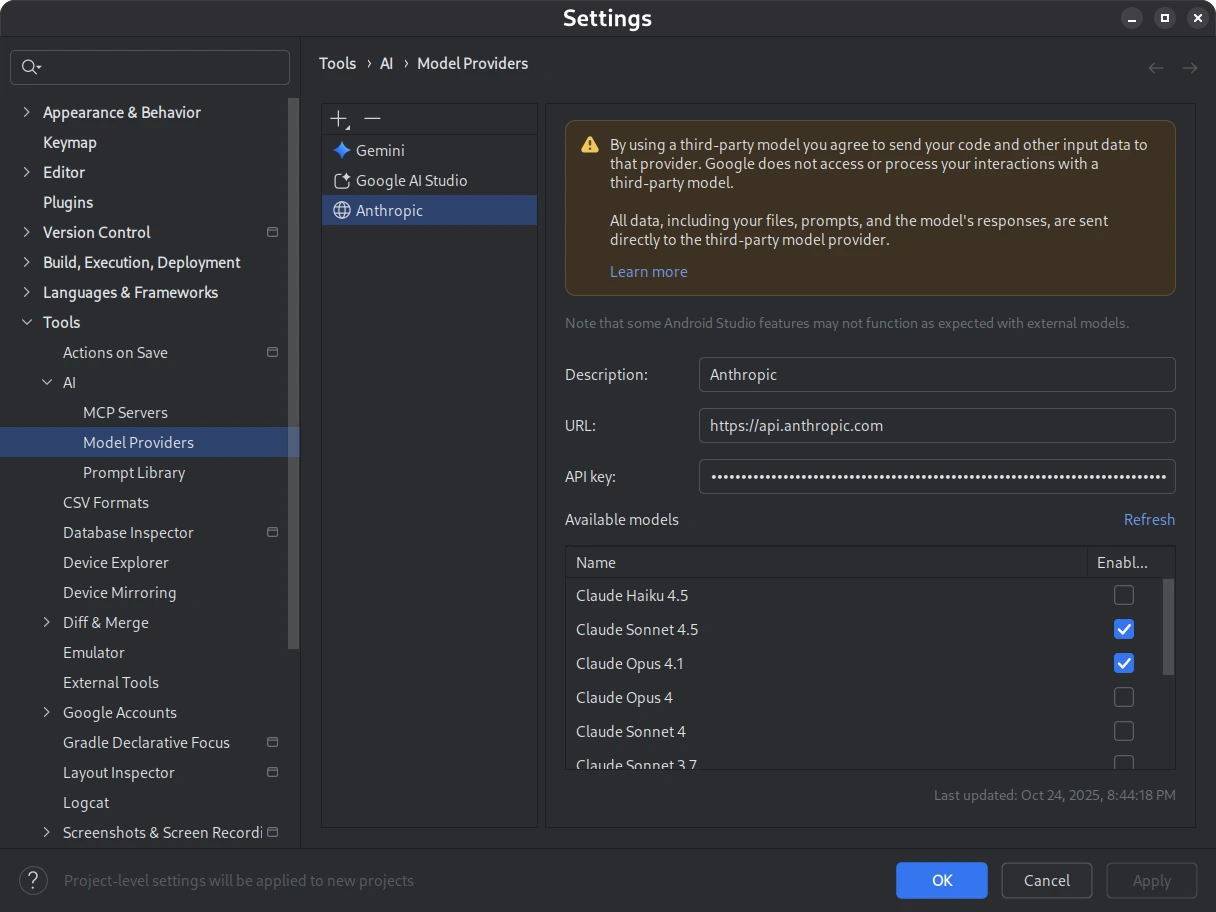
Google's example discovery list, not TokenRex's catalog. Refresh your own connection and select compatible chat models. Official source - 5
Open Android Studio's AI chat window and choose your configured remote model from the model picker. Send a short read-only question and confirm the response and selected model in TokenRex usage.
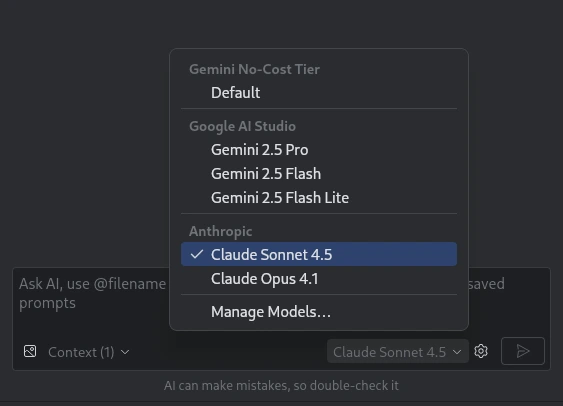
Google's official model picker example. Choose the model from your saved TokenRex provider. Official source - 6
Before using AI Agent on a project, separately check streaming and tool calls with your chosen model. Review file edits and terminal permissions. Code and prompts are sent to the selected provider; specialized Android features may remain incompatible.
Description: TokenRex
URL: https://tokenrex.ai/api/public/v1
API key: Enter your private TokenRex key in Android Studio
Model: Select an enabled chat model after RefreshTroubleshooting
- Model Providers is missing
- Update Android Studio to a release with third-party remote model support. Consult Google's current documentation; older versions may not include this menu.
- Refresh fails or lists no usable models
- Check that URL is https://tokenrex.ai/api/public/v1, the private key is active and the wallet has funds. Select only enabled chat models. Model discovery does not prove that streaming or agent tools work.
- A specialized AI feature is unavailable
- Google supports Chat and AI Agent with remote models but warns that some specialized features are not compatible. Test your required feature and selected model separately.
- Authentication fails
- Check that the saved TokenRex key is active and belongs in the tool's API-key field, not its subscription sign-in. Remove accidental spaces, check your wallet balance, and never share the key in screenshots or exported settings.
- The model is missing or the request URL returns 404
- Copy an exact enabled model ID from Models & Pricing. Follow this method's URL field: some tools expect the versioned base, others the root or full completion address. Check the documented API protocol before changing the path.
- Chat works but streaming or tools fail
- Test a short plain-text conversation first. Confirm the selected model and installed tool version support the required protocol and capabilities. Enable agent actions only after separately checking streaming and tool calls.
Further references
Verify the connection
Send a short message with the selected model, read its response, then confirm the exact model appears in your TokenRex usage. Test streaming and tool use separately before larger agent tasks.