
Use TokenRex with DeepSeek Harness
Add a custom model API in DeepSeek Harness's provider settings.
Custom-provider setup is documented in the linked official sources. A live TokenRex connection from this tool has not been tested. Screenshots illustrate the publisher's interface, not a verified TokenRex session.
Before you start
- A current DeepSeek Harness installation
- A private TokenRex API key
- An enabled streaming, tool-capable chat model
Setup methods
DeepSeek Harness — custom provider
- 1
Install and run DeepSeek Harness (dsh) using the official repository instructions. This is the Harness application, not the DeepSeek model API.
- 2
Create a TokenRex API key and copy an exact enabled chat model ID from Models & Pricing. Replace the example ID with your selected model. Use verified context/output limits and a streaming, tool-capable model for agent tasks.
- 3
Open Settings → Models and choose Add model provider.
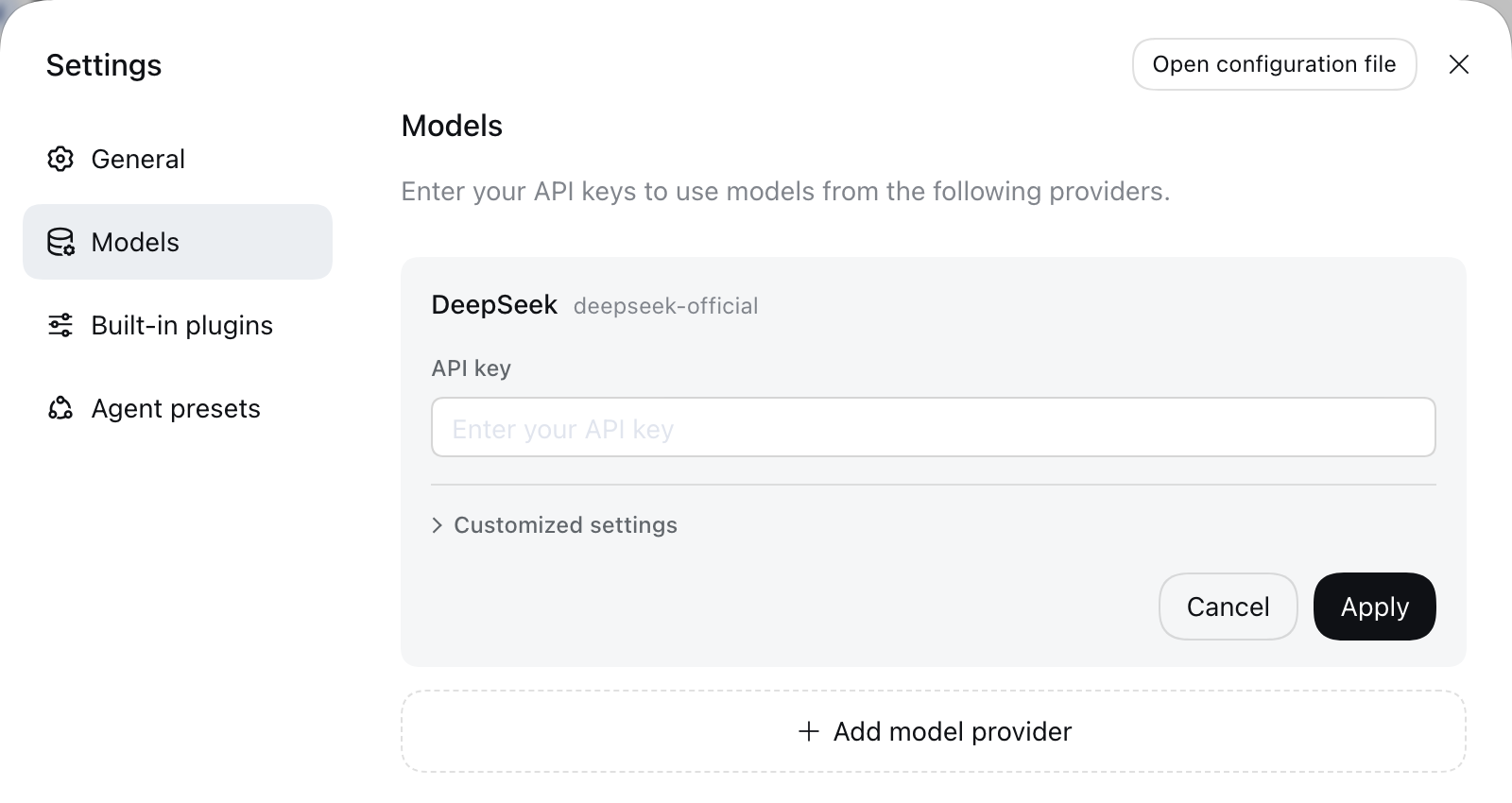
Official DeepSeek Harness Models page. The example provider is not a TokenRex connection. Official source - 1Choose Add model provider below the existing provider cards.
- 4
Switch the card to Custom model API. Enter the permanent lowercase provider ID tokenrex and display name TokenRex.
- 5
Set base URL to https://tokenrex.ai/api/public/v1, API protocol to OpenAI Chat Completions and enter your private key. Do not use Responses or Anthropic Messages for this method.
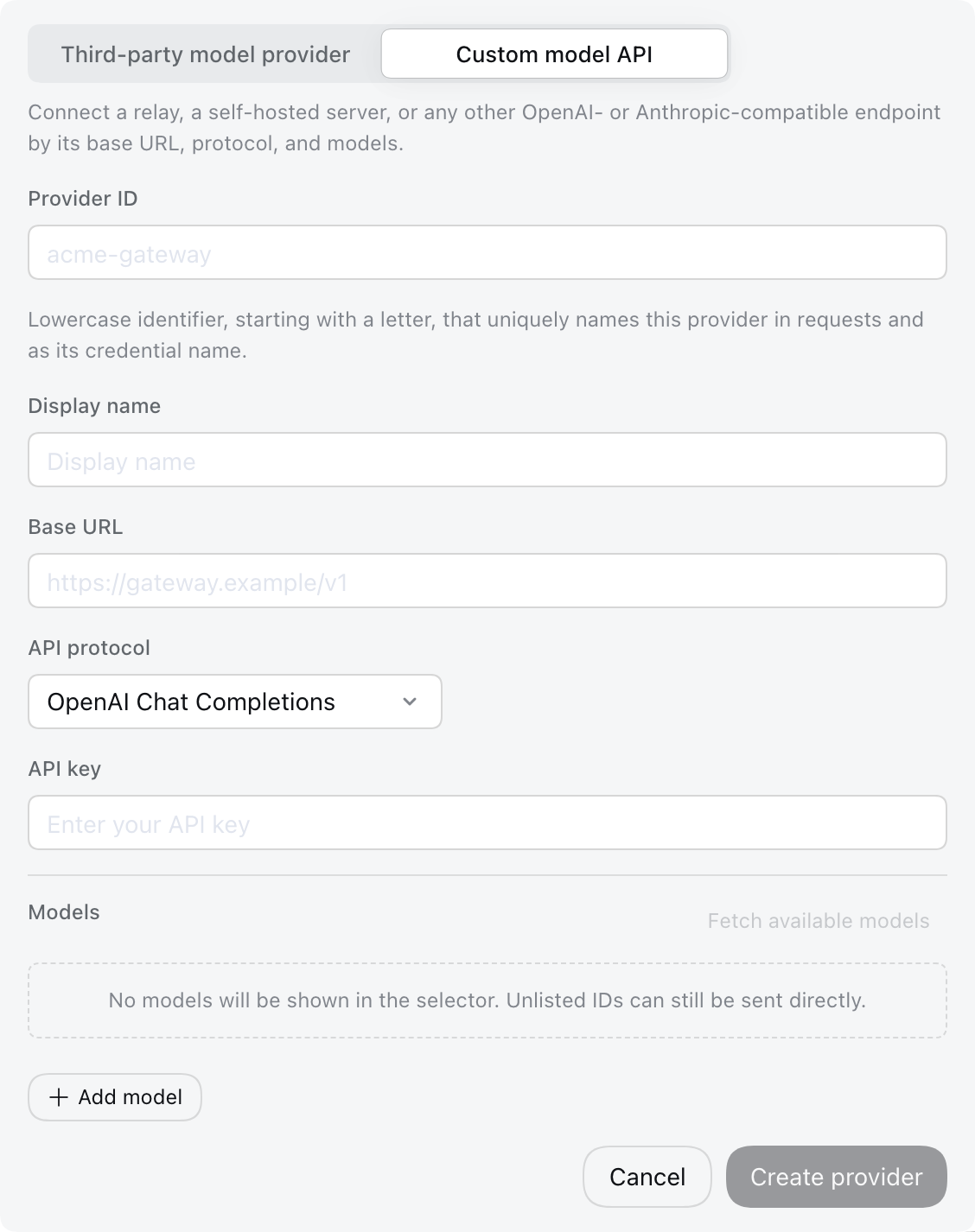
Official custom API form. Replace publisher example values with the TokenRex settings above. Official source - 1Choose Custom model API.
- 2Use the TokenRex versioned base and OpenAI Chat Completions.
- 3Enter your own key privately and register the exact model ID.
- 6
Fetch available models or add the exact model ID manually, then save. Select this provider and model for the conversation; verify the selected active profile.
- 7
Send a short read-only question and confirm the exact model in TokenRex usage. Test streaming and tool calls separately before allowing file, terminal or connected-account actions.
Troubleshooting
- Authentication fails
- Check that the saved TokenRex key is active and belongs in the tool's API-key field, not its subscription sign-in. Remove accidental spaces, check your wallet balance, and never share the key in screenshots or exported settings.
- The model is missing or the request URL returns 404
- Copy an exact enabled model ID from Models & Pricing. Follow this method's URL field: some tools expect the versioned base, others the root or full completion address. Check the documented API protocol before changing the path.
- Chat works but streaming or tools fail
- Test a short plain-text conversation first. Confirm the selected model and installed tool version support the required protocol and capabilities. Enable agent actions only after separately checking streaming and tool calls.
Verify the connection
Send a short message with the selected model, read its response, then confirm the exact model appears in your TokenRex usage. Test streaming and tool use separately before larger agent tasks.